Every cut in your video, found, checked, fixed and exported, in ComfyUI.

SceneCut finds the shots in a video with OmniShotCut, checks every cut with DINOv3 so flashes and fast pans don't split a shot, and lets you review the result: play it, step frame by frame, move a cut that is a frame off, pick the scenes you want, and export them as clips, cut on the exact frames, with their sound.

Frame-exactframe n is the n-th decoded frame, everywhere
63 sto find and check the cuts of a 6.5-min 2560×1080 film on an RTX 4090
7 codecsH.264, H.265, NVENC, ProRes, FFV1 lossless
No ffmpegneeded: decoding and encoding run on PyAV

Live demo

This is the SceneCut Viewer, the same code that runs inside the node, on the trailer of William Castle's Let's Kill Uncle (1966, public domain): hard cuts, a jump cut, dissolves, a fade, title cards and green-screen split screens. SceneCut found 23 scenes with the Film preset. The lower track shows the 4 boundaries it merged: a camera move and an animated graphic that validation judged to be one shot, a title too short to be a shot, and two transitions folded into the shot before. Scene 3 begins after a dissolve; click it to see why validation kept that cut.

Loading the viewer…
cut jump cut after a transition (the transition is folded into the shot before) selected
Play Space, one frame ← →, previous or next cut ↑ ↓ Inspect click a card; double-click plays the scene in a loop Select the circle on a card, S, Ctrl+click, or Shift+click for a range Timeline wheel zooms, Shift+drag pans; the lower track shows what refinement merged

What it does

Simple nodes with presets do the whole job; advanced nodes split the same pipeline into stages and expose every parameter.

Detect every shot

OmniShotCut predicts whole shots and labels transitions (dissolve, wipe, push, slide, zoom, fade, doorway) and jump cuts. Presets for film, music videos, anime, vlogs and sports, in seconds, so they mean the same at any frame rate.

Check every cut

DINOv3 compares the frames on both sides of each cut; camera flashes, strobes, whip pans and a shot split in two are merged back. Every decision keeps its scores, and nothing is thrown away.

Fix a cut in one click

Put the playhead on a frame on the wrong side of a cut and press Fix cut: the frames around it are compared with both scenes and the cut moves to where the picture really changes. Or join the frame to the nearest cut by hand.

Pick your scenes

Select scenes in the viewer and play them one at a time in Selected Scenes, in the node or in its own browser tab, kept in sync. Fixes and selection are saved with the workflow.

Export clips

One file per scene, cut on the exact frames, with its sound, plus scenes.json: from the viewer's Export clips button or the Save Scenes node. H.264 by default; H.265, NVENC, ProRes and lossless FFV1 too.

Plug into any workflow

Every node that outputs scenes can output their frames as an IMAGE batch (all, or one per scene), and the viewers take images in. Scene lists are JSON, and the core runs without ComfyUI.
Get started

Three steps to your first scene list. You need ComfyUI and, for speed, an NVIDIA GPU; everything also runs on the CPU, slowly.

Install the nodes

Clone into custom_nodes, install two small packages and restart ComfyUI.

cd ComfyUI/custom_nodes
git clone https://github.com/PedroMarinhoDev/ComfyUI-SceneCut
pip install -r ComfyUI-SceneCut/requirements.txt

Open the workflow

Templates → custom nodes → SceneCut-basic, or drag the file in. Pick a video with Browse…. The models download on first use and are checked against their SHA-256.

example_workflows/SceneCut-basic.json

Run, review, export

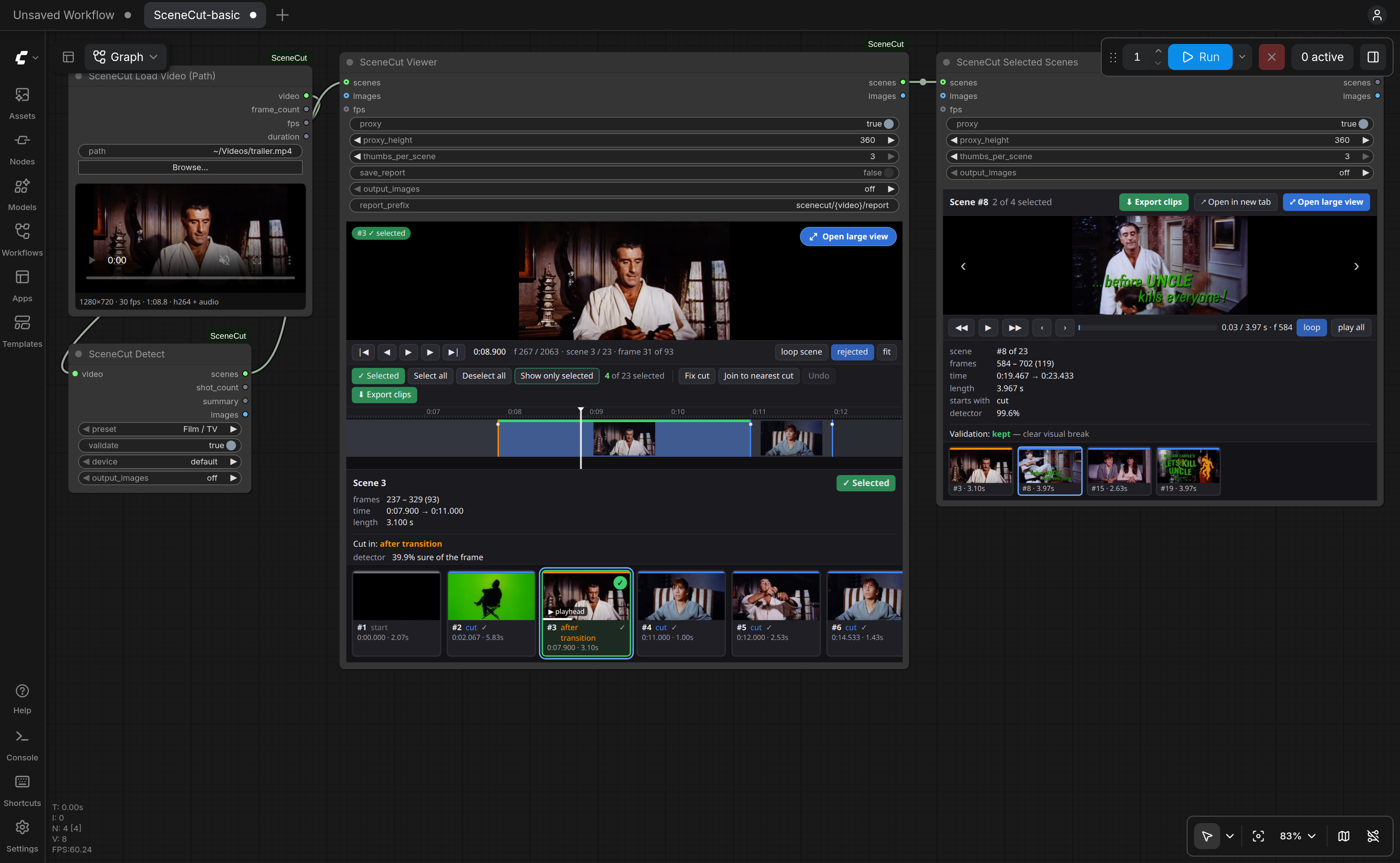
Queue the workflow, then review in the viewer: fix cuts, select scenes, and press Export clips. The clips go to your output folder.

output/scenecut/<video>/scenes_00001/
  <video>_001.mp4  <video>_002.mp4  …
  scenes.json
SceneCut Load Video→ SceneCut Detect→ SceneCut Viewer→ SceneCut Selected Scenes
The basic workflow in ComfyUI after a run on the trailer

The advanced workflow splits Detect into Detector Loader → Detect (Advanced) → Refine → Validator Loader → Validate (Advanced), each with every parameter.

Export

Exports run in the background with a progress bar; you can keep reviewing meanwhile. Frames are found by their timestamps, so a clip in the middle of a two-hour film is one keyframe seek away, and every clip is checked to hold exactly its scene's frames.

CodecFileEncodes onUse it for
H.264default.mp4 + AACCPUplays everywhere
H.264, NVIDIA GPU.mp4 + AACGPU (NVENC)the same, faster
H.265 / HEVC, 8 or 10-bit.mp4 + AACCPUsmaller files
H.265, NVIDIA GPU.mp4 + AACGPU (NVENC)smaller files, fast
ProRes 422 HQ.mov + PCMCPUediting
FFV1.mkv + FLACCPUlossless, for datasets

Performance

Measured on 2026-10-16 with an RTX 4090 and an Intel Core i9-14900K. "End to end" is the basic workflow: detection, validation, the viewer's preview copy and thumbnails. Export writes every scene with its sound, H.264 at high quality on the CPU, and every clip was checked to hold exactly its scene's frames.

VideoEnd to endExport all scenes, H.264
Changing a threshold is instantEach stage is cached by ComfyUI and the validator keeps its embeddings per video, so tuning Refine or Validate never runs detection again.
Memory stays flatValidation reads only the frames near cuts, in one pass, however long the video.
Fix cut is interactiveAbout 0.2 s on the viewer's preview copy: it reads only the frames around the cut.

FAQ

Why "frame-exact"?

Seeking by frame number lands on a neighbouring frame in long-GOP video, so a cut found at frame 1200 can be cut out at 1199. SceneCut never does that: every stage counts decoded frames, and the exporter identifies frames by their exact timestamps (falling back to counting from the start when a file's timestamps are unusual).

Do I need ffmpeg?

No. Decoding and encoding, including NVENC, run on PyAV, which ships with ComfyUI. An ffmpeg binary on the PATH makes detection a little faster; the frames are identical either way.

Which preset should I use?

Film / TV for measured pacing and dissolves, Music video for fast edits and strobes, Anime for held frames and impact flashes, Vlog for jump cuts in one setup, Sports for fast pans and graphic wipes. Film and Music video are tuned on real footage; the others start from reasoned values, and feedback on them is welcome.

Where do my files go?

Exports and Save Scenes write to output/scenecut/<video name>/scenes_00001/: the clips, named after the video and the scene number, and scenes.json, the scene list with your selection and fixes and a table of the clips.

Can I use it outside ComfyUI?

Yes. The scenecut package has no ComfyUI imports, and scenecut.headless runs the same pipeline as the Detect node from a script.

Which models does it download?

OmniShotCut (164 MB, MIT) for detection; DINOv3 ViT-L/16 (1.2 GB, DINOv3 License) and SSCD (178 MB, MIT) for validation. Each is checked against its SHA-256.